A beginner-friendly walkthrough. If you've never used the plugin before, this
is where to start. For why the time model is the way it is, see
time-model.md. For exact API names, see the addon README.
The 30-second mental model
There are three things in the plugin, and each has a clear role:
- Engine time — Godot's own
delta(real seconds). Drives rendering, physics, input, animation. The plugin never touches this. - Game time — your game's calendar time: "Day 3 of Spring, year 2, 14:35". This is what crop timers, NPC schedules, cooldowns, and save files care about. The plugin manages this.
- The bridge —
TimeScale.delta_multiplier. One number that controls how fast game time flows relative to engine time. Default is 1000.0 (1 real second ≈ 16 game minutes). You can change it for slow-mo, fast-forward, or pause.
The plugin gives you one or more shared runtime clocks — GameClocks —
driven by a TimeHost. The host builds an internal ClockGroup from its
clocks array. Each clock derives its date, time of day, and day-night
phase from its own µs counter.
Engine delta (real seconds) ──► TimeHost ──► ClockGroup ──► GameClock.current_microseconds
  (Godot's _process)              (driver)    (N clocks)    (each clock, hermetic)
                                                                       │
                                                                       ├─► DateTime
                                                                       ├─► TimeOfDay phase
                                                                       └─► Save / load (per clock)
That's the whole picture. The rest of this guide is "how to author each piece."
What the demo looks like
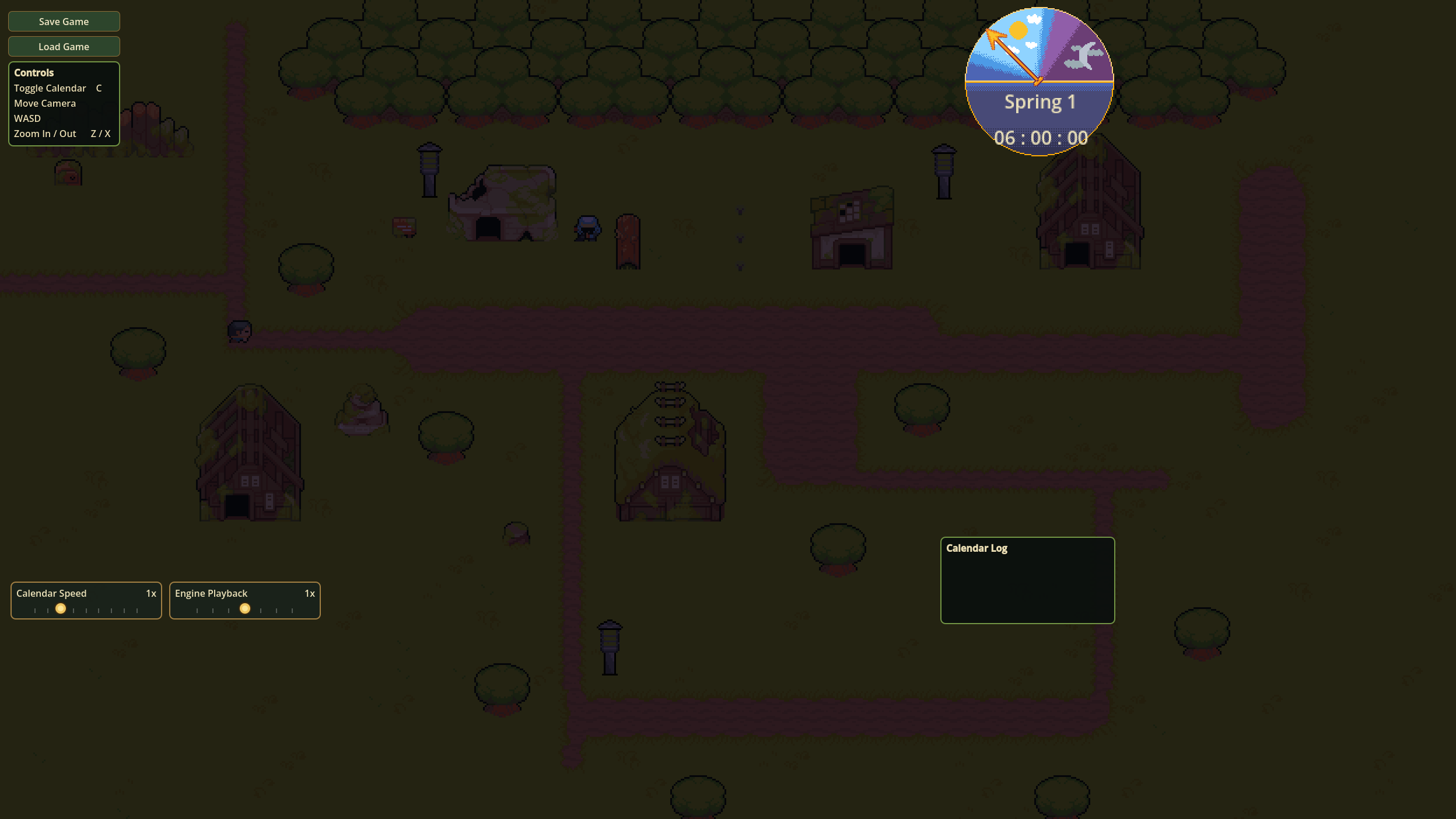
The 2.0 demo includes a live TimeHost, GameClock, calendar display,
time dial, event log, speed controls, and save/load buttons wired through
the same public APIs described below.
| Surface | Screenshot |
|---|---|
| Time dial — dawn | 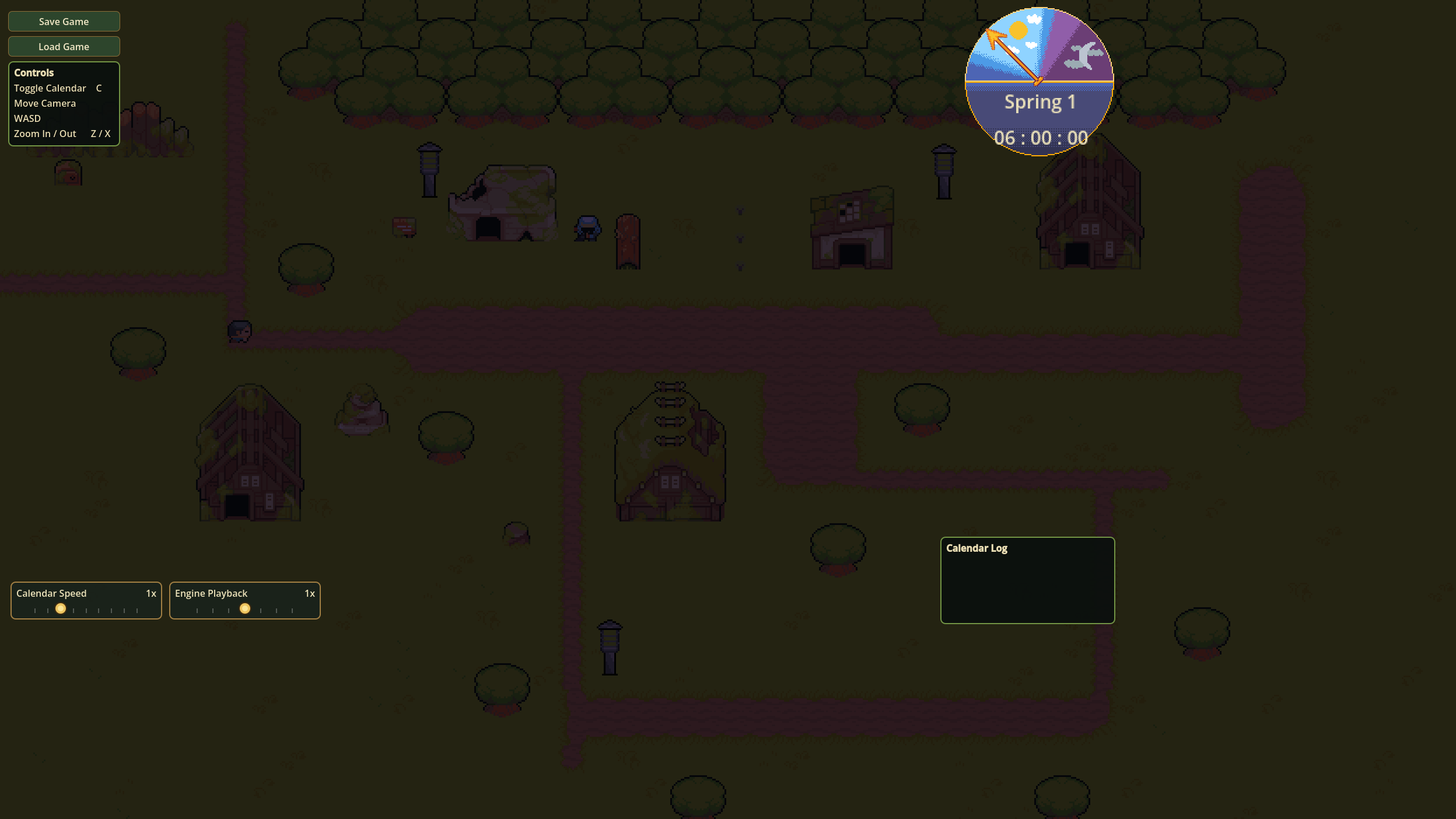 |
| Time dial — day | 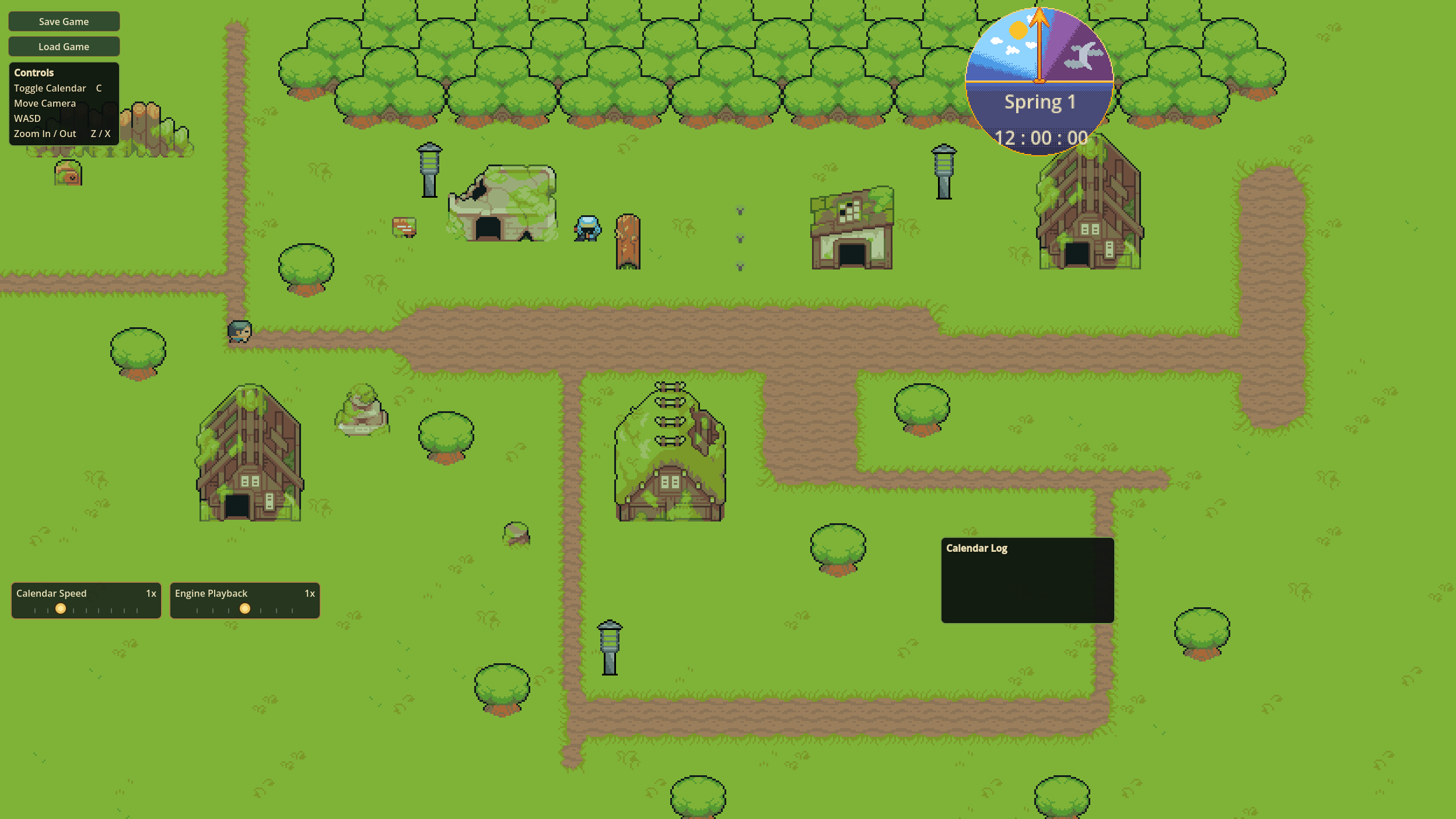 |
| Time dial — night | 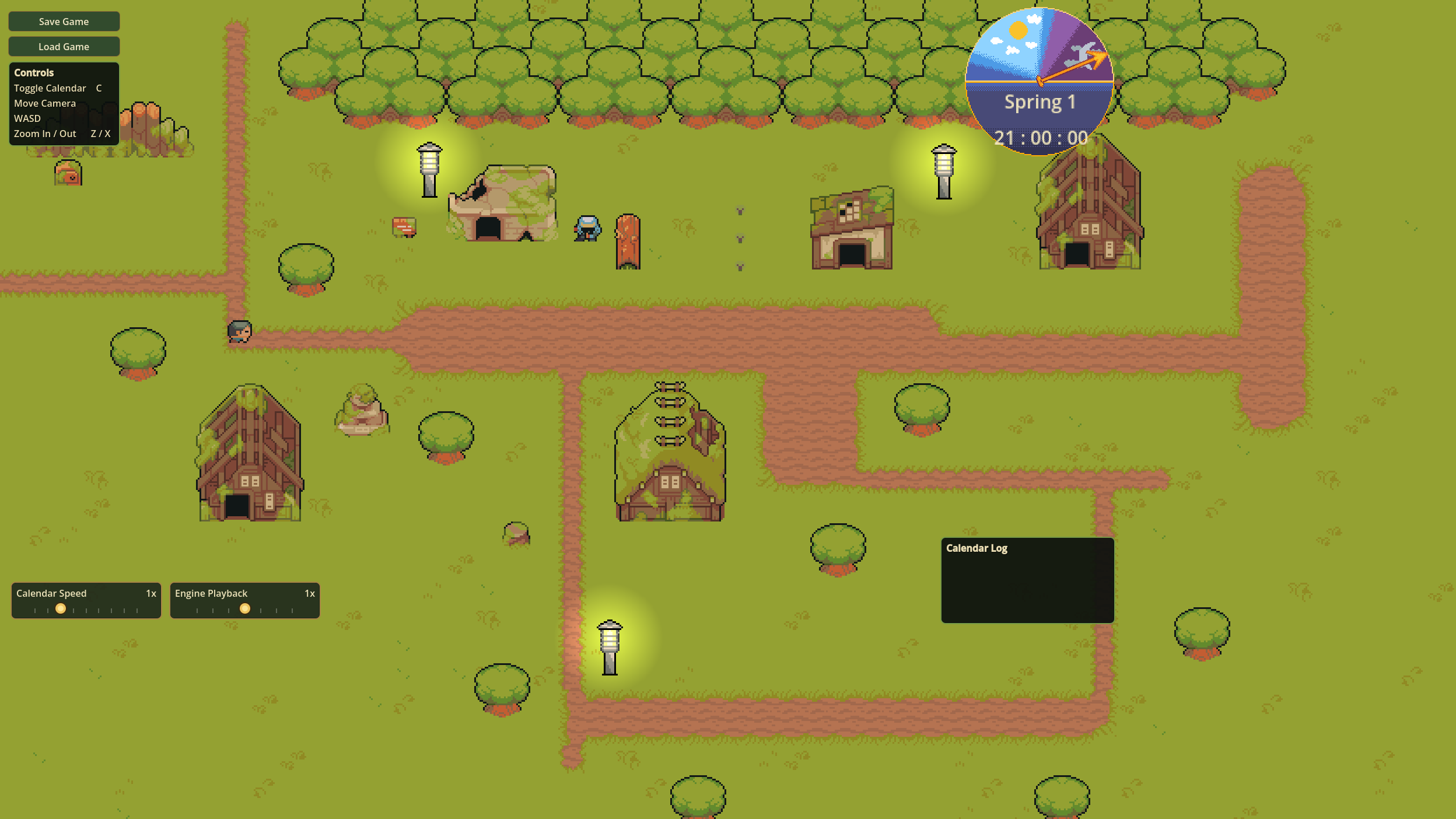 |
| Calendar month popup | 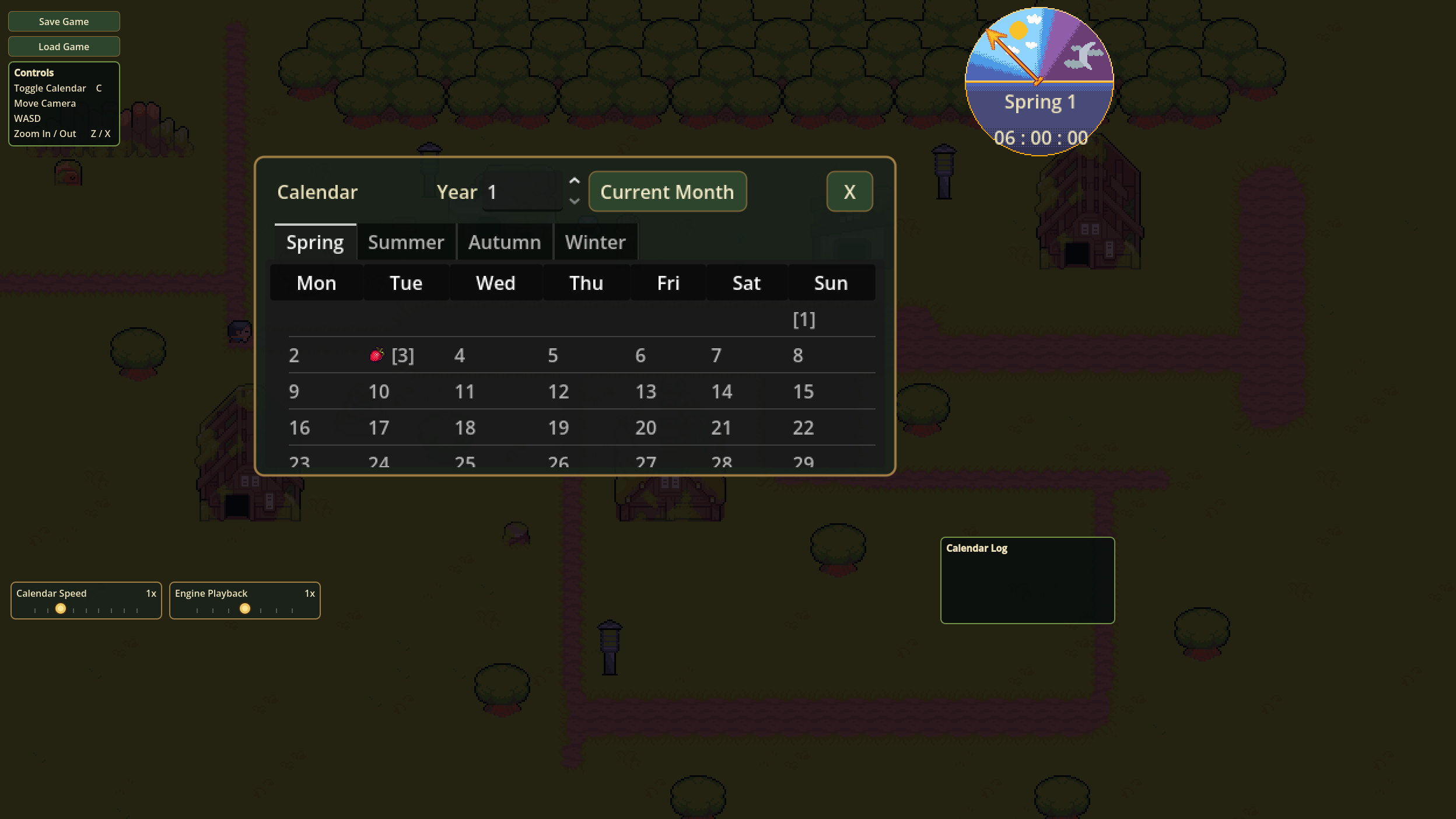 |
| Speed controls | 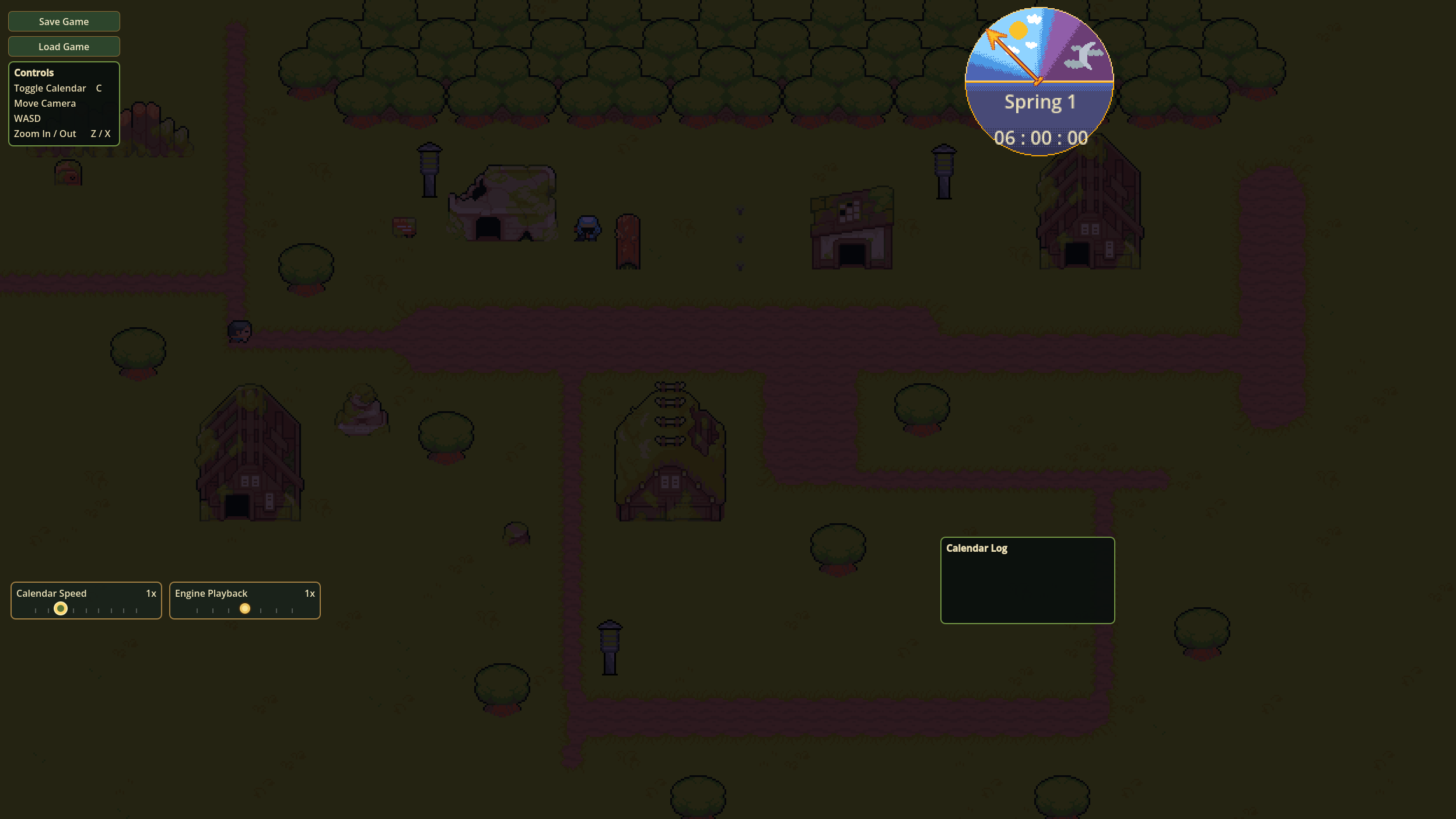 |
| Time event log | 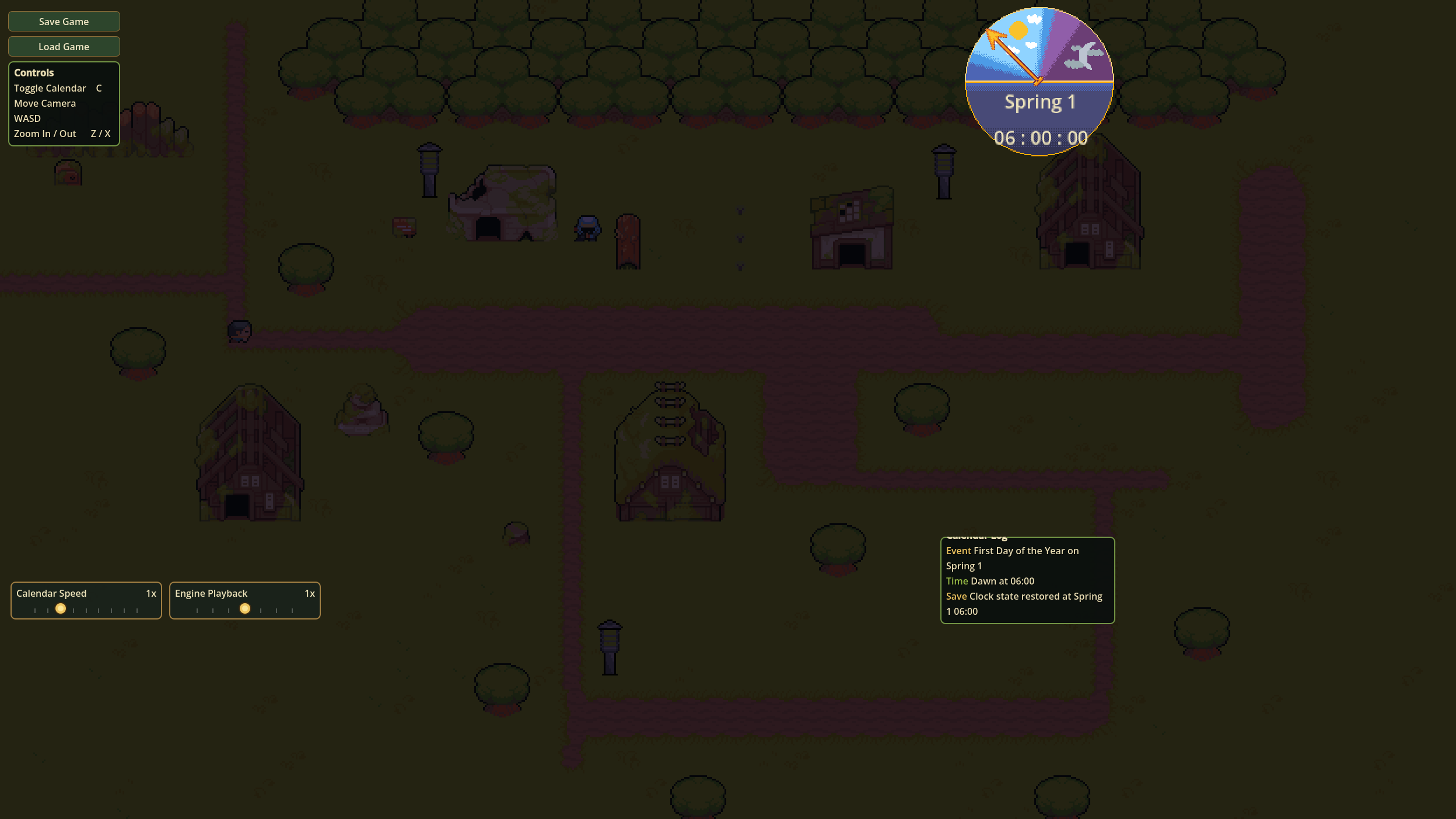 |
| Save/load proof | 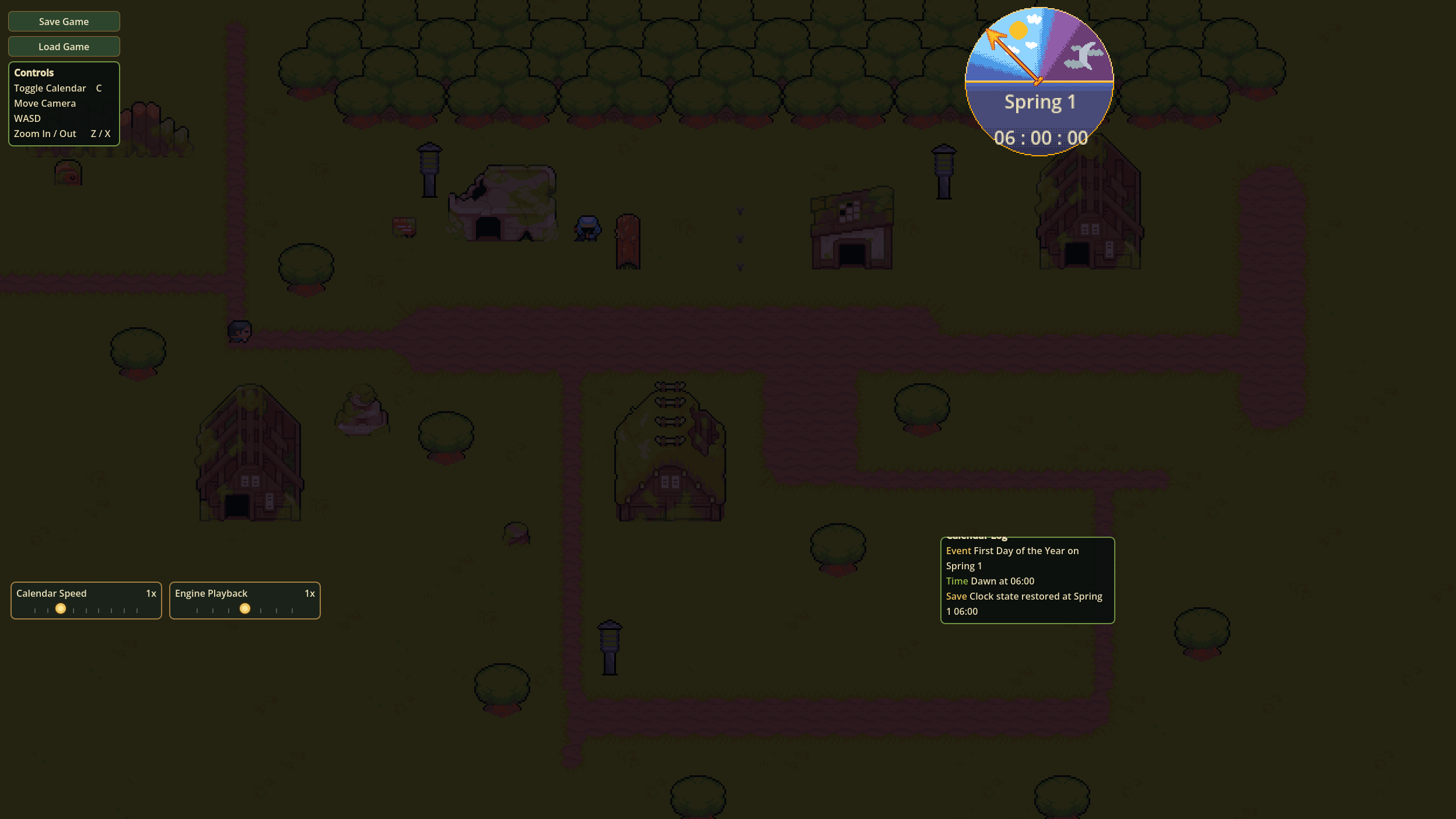 |
Setup (10 minutes)
1. Install the addon
Copy addons/calendar_time/ from this plugin into your Godot project's
addons/ folder, then enable it under Project Settings → Plugins →
Calendar Time → Enable. No autoload is registered — everything is explicit.
2. Add the services scene
The plugin ships a ready-made scene called calendar_time_services.tscn
(in the templates/calendar_time/ folder — copy it into your project).
Instantiate it once somewhere in your main scene tree. It includes a TimeHost already wired to the bundled starter GameClock:
| Node | What it does |
|---|---|
TimeHost |
The engine→game driver. Drives every clock in TimeHost.clocks each frame via delta × TimeScale.delta_multiplier. Exposes get_clock_group() and get_group_serializer(). |
GameClock |
Shared Resource assigned in TimeHost.clocks; owns the current time, calendar, signal bus, serializer, and optional age service. |
Why does
get_clock_group()exist? The host builds an internal group so save/load and multi-clock driving have one implementation. You do not author aClockGroup.tres; assign clocks directly inTimeHost.clocks.
AgeService is a Resource carried by the shared GameClock.tres (see
step 4). It tracks the main AgeState in the clock's own per-clock
registry (clock.age_registry) — not a global singleton.
Per-clock age registry, not a process singleton. Every
GameClockowns its ownAgeStateRegistry. Two clocks running side-by-side never see each other's age state. EachAgeServiceregisters itsAgeStateunder its configuredservice_id(default"age_service"). Multi-clock games with multiple age services set distinctservice_idper.tresto keep their mainAgeStates separate. TheAgeComponent(scene-tree consumer) readsclock.age_registryvia its own@export var clock : GameClockbinding. Seetime-model.md§Per-clock age-registry ownership for the full architecture.
AgeComponent is a Godot scene component Node, not an ECS data component.
If your game layers ECS on top of Calendar Time, keep ECS component names in
your adapter layer and bind those systems to Calendar Time's AgeComponent /
AgeState API at the boundary.
You can add these nodes individually instead (the "Add Child Node" menu has them), but the bundled scene is faster and the wiring is correct out of the box.
3. Configure the calendar
A GameCalendar is a .tres that defines the shape of your time: how
many months, how many days, how many hours, event days (festivals,
harvest days, etc.). Create one:
- In the FileSystem panel, right-click your project folder → New →
Resource… → pick
GameCalendar→ save it asmy_game_calendar.tres. - Inside the calendar:
- Add one or more
GameYearsub-resources. Each year has months. - Add
GameMonthsub-resources inside each year. Each month has a day count and optionalEventDayresources (e.g., "Harvest Festival"). - Optionally set a
TimeScale(the engine→game bridge multiplier).
- Add one or more
Don't want to build one from scratch? The plugin ships a four_seasons
starter calendar in templates/calendar_time/resources/four_seasons/ —
copy and tweak it.
4. Author your shared GameClock
Every clock consumer binds the same GameClock .tres so they share
one runtime timeline. Author it once:
- New → Resource… →
GameClock→ save asmy_clock.tres. - Set
calendartomy_game_calendar.tres. - Optionally set
epochto your calendar's epoch. - Optionally assign an
AgeServiceResource if you use aging.
Bind this same my_clock.tres everywhere: TimeHost.clocks, UI displays,
AgeComponents, lighting, and game code.
5. Wire TimeHost
Select the TimeHost node (inside the services scene you added). In the
Inspector:
clocks→ add yourmy_clock.trestime_scale→ yourTimeScalebridge multiplier, or leave empty for the default 1000× bridgeauto_attach_unbound_clocks→ leavefalse(the default) for production / multi-clock scenes. Set totruefor the 1.x "drop a clock.tres anywhere and it just works" beginner experience. See MIGRATION.md §6.1 for the rationale (issue #131 in the internal tracker).
Press Play. The host is now ticking every clock in clocks. You're done with
setup.
6. (Optional) Add a UI
The templates/calendar_time/ui/ folder has ready-made UI scenes:
date_time_display.tscn— shows the current date/timetime_of_day_display.tscn— shows dawn/day/dusk/nightcalendar_month_display.tscn— shows the full month gridengine_time_scale_control.tscn— a slider for fast-forward/slow-mo
Add them under a CanvasLayer in your UI hierarchy, then assign the same
shared my_clock.tres to each (the templates ship with a default
four_seasons_clock.tres so they work standalone — override for your
game's clock). UI displays bind a single GameClock (they display one
clock's state); for multi-clock UIs, bind the ClockGroup and iterate.
How time flows (the short version)
Godot's _process(delta) runs on your TimeHost. The host converts the
engine delta into host game time with TimeHost.time_scale.delta_multiplier,
then routes that delta through its internal ClockGroup. Each GameClock
applies its own speed_multiplier, advances its microsecond counter, and
fires boundary events on its own bus. You subscribe to clock.signal_bus
from your game code and react.
engine delta
→ TimeHost.time_scale.delta_multiplier
→ ClockGroup routes to each clock
→ GameClock.speed_multiplier
→ clock.signal_bus events
Use TimeHost.time_scale for host-wide calibration. Use
GameClock.speed_multiplier when only one timeline should speed up, slow
down, or pause.
Want the full picture? See
time-model.mdfor the long version — boundary events, ownership of the signal bus, why the clock is a Resource, howTimeScalefits in, and the per-clock vs group-level save/load split.
When do I need multiple clocks?
You don't, for most games. A single clock covers the vast majority of
cases — your world's calendar, ageing, and day-night cycle are all driven
by the same µs counter. The default CalendarTimeServices scene ships with
a one-element ClockGroup that satisfies this 95% case.
You do need multiple clocks if your game wants different timelines to advance independently. Common scenarios:
- World clock + festival timeline. The world clock drives crop growth, NPC schedules, and day-night. A separate festival clock tracks when festivals are scheduled (decoupled from the world clock so a festival can be paused while the world keeps running, or vice versa).
- Lockstep multiplayer. Each player has their own clock; the game syncs them at deterministic ticks.
- Save-file-time vs game-time. A meta-game clock that runs only when the main menu is up, separate from the in-game clock.
For each additional clock, add a GameClock.tres to TimeHost.clocks.
Subscribe to each clock's signal_bus for its own events; use
host.get_group_serializer() for unified save/load.
Multi-clock saves are reorder-safe by default: each clock has a
stable clock_id (auto-derived from resource_path), so adding,
removing, or reordering clocks between save and load does not
cross-pollinate state. See Per-clock identity in the save/load
section below for the resolution chain and the clock_id_override
seam for runtime clocks.
Tip: Don't reach for multiple clocks unless you have a concrete reason. A single clock with
time_scaletweaks covers most pacing needs. Multiple clocks add real complexity (event correlation, save ordering, multi-clock UI). Start with one.
What should use clock time vs engine delta?
Route gameplay/world simulation through GameClock:
- calendar progression
- day/night state
- event schedules
- weather changes tied to date/time
- crop or object ageing
- save/load world time
- deterministic replay/offline ticks
Use raw Godot delta directly for presentation and immediate feel:
- character input response
- camera smoothing
- UI tweens/transitions
- presentation-only particles/VFX
- sprite/
AnimationPlayerplayback unless it represents game-time simulation - physics unless your game intentionally couples physics to simulation time
Avoid using Engine.time_scale as the normal way to accelerate calendar
time. It changes the whole Godot runtime. Calendar Time demos and gameplay
controls should prefer GameClock.speed_multiplier for timeline speed.
How to react to time
Subscribe on the clock's signal bus:
@export var clock : GameClock

func _ready() -> void:
    clock.signal_bus.date_changed.connect(_on_date_changed)
    clock.signal_bus.time_of_day_changed.connect(_on_time_of_day)
    clock.signal_bus.event_day_started.connect(_on_event_day)

func _on_date_changed(event: DateChangeEvent) -> void:
    print("New day: %s" % event.new_date)

func _on_time_of_day(tod: TimeOfDay, _last: TimeOfDay) -> void:
    print("It's now %s" % tod.resource_name)

func _on_event_day(event_day: EventDay) -> void:
    print("Festival! %s" % event_day.display_name)
How to save and load
Per-clock (the canonical surface)
Every GameClock owns its own TimeSnapshotSerializer and exposes
to_dict() / from_dict():
# Save a single clock
var save_data := clock.to_dict()

# Load it back
clock.from_dict(save_data)
Multi-clock facade (all clocks in one dict)
For games with a ClockGroup, use the host's get_group_serializer() to
save time + age combined per clock, namespaced under the group's
save_key:
# Save
var facade := time_host.get_group_serializer()
var save_data := facade.to_dict()
var file := FileAccess.open("user://savegame.json", FileAccess.WRITE)
file.store_string(JSON.stringify(save_data))
file.close()

# Load
var file := FileAccess.open("user://savegame.json", FileAccess.READ)
var save_data := JSON.parse_string(file.get_as_text())
time_host.load_state(save_data)
file.close()
TimeHost.load_state() restores the group through the same facade and emits
clock_state_loaded for each loaded clock, so bound UI, day/night, and other
derived consumers recompute immediately after load.
The top-level shape is { group.save_key: { <clock_id>: <per-clock dict>, ... } }.
Each per-clock dict carries:
clock_id— the stable identity the host uses to route the entry back to the right clock on load (see Per-clock identity below)."time_state"— the legacy 1.x snapshot top key (preserved for save migration; containsserialization_id,game_microseconds,date_time)."age_states"/"age_service_state"— present if the clock has anage_serviceconfigured.
Saves reload to the exact microsecond the player saved at. Current saves
write the grouped shape above. Legacy loads are also accepted through the same
time_host.load_state(save_data) call.
Legacy save migration
You do not need a separate migration script for existing pre-2.0 save files.
Pass the parsed save dictionary to time_host.load_state(save_data). Calendar
Time detects the old top-level shape and loads it into the first bound clock.
The true 1.x top-level save shape used these root keys:
{
    "time_state": {
        "id": "world_clock_legacy",
        "game_seconds": 3600.5,
        "date_time": { ... },
    },
    "age_states": { ... },
    "world_age_system_state": { ... },
}
On load, Calendar Time adapts that shape to the current per-clock format:
"time_state"loads throughTimeSnapshotand migrates legacy"id", floatgame_seconds, and legacygame_ticksto canonical integergame_microseconds."age_states"loads into the clock'sAgeStateRegistryif the clock has anAgeService."world_age_system_state"maps to the current per-clock"age_service_state"payload.
Early grouped compatibility saves under "clocks" are still accepted too. New
saves should always use the current grouped shape from
time_host.get_group_serializer().to_dict().
The save dict key stays "time_state" for backward compatibility even though
the DTO class is TimeSnapshot.
Per-clock identity (reorder-safe saves)
Each GameClock exposes a stable clock_id getter. The save format
keys per-clock dicts by clock_id, so reordering the host's clocks
between save and load does not cross-pollinate state — each clock's
state lands in the clock matching the id, regardless of position.
Default resolution chain (no user setup required):
clock_id_override(an@export varon the resource) — if set, used as-is. Empty by default.- Hash of the clock's
resource_path— for clocks loaded from a.tresfile, two clones of the same file get the same id automatically. - Monotonic runtime counter — for
GameClock.new()calls with no resource path (e.g. a clock built in_ready()). Each call gets a distinct id; no coordination required.
For most games, the default resolution is enough —
.tres-loaded clocks get stable ids automatically, and runtime-only clocks get distinct ids. The advanced override section below covers the rare cases where you need to setclock_id_overrideexplicitly.
When to set clock_id_override explicitly (advanced):
Runtime clocks that need stable identity across runs. A clock built via
GameClock.new()in_ready()gets a runtime id that resets on process start. If you need save data to round-trip across two separate game sessions (e.g. save in session A, load in session B), override with a stable string.func _ready() -> void: var clock := GameClock.new(my_calendar) clock.clock_id_override = &"runtime_world_clock" $TimeHost.clocks = [clock]Resource_path is volatile — e.g. a clock saved via
ResourceSaver.save()touser://and reloaded at a different path on the next run. The auto-derive keys offresource_path, so a different path gets a different id. Override with a stable string to keep identity stable across path changes.Cross-deployment deduplication — same logical clock in two builds (e.g. the same
.pckreleased twice) should map to the same id even if the.treswas touched.
@export var clock_id_override : StringName = &""
Setting clock_id_override to a non-empty StringName short-circuits
the resolution chain. Two clocks with the same override value are
treated as the same clock for save/load purposes (state is loaded
into whichever one is in host.clocks at load time, the other is
left untouched). Don't share overrides across two clocks that hold
different state — the load will route the saved data to the wrong
clock.
For the deeper contract (the positional fallback for very early
unreleased saves, the trade-off with stable ids over a ClockGroup-shaped
{0, 1} mapping, and the reordering gotchas that no longer apply),
see docs/notes/multi-clock-save-identity.md.
Common beginner questions
Q: My clock isn't ticking. What's wrong?
A: Check that TimeHost.clocks has at least one GameClock assigned. The
host refuses to advance without a clock.
Q: Can I have more than one clock?
A: Yes — add more GameClock resources to TimeHost.clocks.
Each clock is self-contained (its own calendar, signal bus, age registry);
the host drives all of them automatically. See
When do I need multiple clocks? above.
Q: How do I speed up or slow down time?
A: Change TimeScale.delta_multiplier on the host's TimeScale resource.
Higher = faster game time. Use the engine_time_scale_control.tscn UI
template for a runtime slider.
Q: How do I pause game time without pausing the game?
A: Set TimeScale.delta_multiplier = 0.0. The clock stops, but rendering,
physics, and input keep running — perfect for an inventory menu.
Q: How do I attach an AgeComponent to my game object?
A: In the Inspector, set @export var clock : GameClock to your my_clock.tres.
The component binds to clock.age_registry automatically. Multi-clock
scenes bind the clock your age service is configured for. Don't leave
clock unset — the component will push_error and refuse to register
state.
Q: My save uses multiple clocks. Will the data cross-pollinate if I reorder them?
A: No. Each clock is identified by a stable clock_id (auto-derived
from resource_path for .tres-loaded clocks, or from a monotonic
counter for runtime clocks). Saves key per-clock by clock_id, so
adding, removing, or reordering clocks between save and load does
not cross-pollinate state. If you need explicit stable identity for
a runtime clock, set clock_id_override on it (see Per-clock
identity in the save/load section above).
Q: How do I make sure two separate game runs identify the same runtime clock?
A: Set clock_id_override to a stable string on the runtime clock:
func _ready() -> void:
    var clock := GameClock.new(my_calendar)
    clock.clock_id_override = &"runtime_world_clock"  # any stable string
    $TimeHost.clocks = [clock]
Without the override, a GameClock.new()-built clock gets a runtime
id from a process-wide counter that resets on each process start —
so two separate runs of the same code produce different ids. The
override pins the id. (See Per-clock identity in the save/load
section above for the full resolution chain and the three override
scenarios.)
Q: Where do I learn more?
time-model.md— the full time-model design doc- The addon README (
addons/calendar_time/README.md) — full API reference MIGRATION.md— only relevant if upgrading from a 1.x projectMIGRATION.md§8 — the GameClock refactor (this refactor)
Source
docs/guides/getting-started.md
Plugin docs root:gdscript/plugins/calendar_time_dev/docs